Tuesday, August 20, 2013

Make an easy url for your facebook page

If you've just set up a Facebook page for your business or product you will find that the link to your page (the url people have to type in to the internet browser) is quite long and not at all memorable. It will be something like www.facebook.com/pages/yourpagename/1234567891234567 but you are able to change this to something easier like www.facebook.com/yourpagename

Make sure you are logged in to Facebook then visit www.facebook.com/username
Here you can set a username for your personal page (the one you see all your friends posts), and your facebook business page.
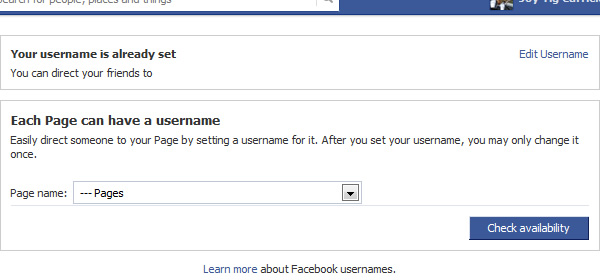

First, choose your business page from the drop down menu.
Type the name you would like your page to be found as.
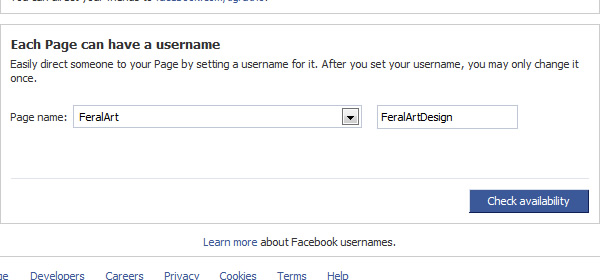


Press the Check Availability button, this will check if anyone else already has the url you would like to be found for. As there are millions of profiles and business pages you may find you don't get your ideal username (I couldn't get FeralArt for example as someone already has it), so you may have to brainstorm a bit to find something appropriate and memorable.

Once you've found a name available you will get a popup window, this lets you know you can't take someone elses trademark, you can't sell usernames etc. But it's also worth noting if you choose to change the username/url of your page in the future you can only do this once.

Once confirmed your username is set up.

Thursday, July 11, 2013

Find out how many visitors clicked on your link.

This is a short simple visual guide to looking at promotion traffic from social media to your website in Google Analytics.

Your statistics can tell you useful (and interesting) information like where people have come to your website from, then you can drill down and see which promotions are working for you.
For example, if you post on Facebook about a new product available on your website on Wednesday and link to it, you can jump into your statistics a few days later (giving people time to see/act and your statistics time to catch up) and see how many people viewed the product on and a few days after Wednesday coming from Facebook.

Log into your Google Analytics account.
In the left menu go to: Traffic Sources > Sources > All Traffic


Change the date range the graph is showing to the days you would like to see results from.

In the main graph area
Click on facebook.com/referral in the list of referring sites

Inbetween the graph and referring sites (which should now only show Facebook) there's a little dropdown menu that says 'Other' (next to Primary Dimension: Source/Medium), click on that and choose: Traffic Sources > Landing Page


This will show a list of pages under the graph. The list shows which link visitors from Facebook clicked on.
Find the link to the product you promoted and you will see the amount of visits it has had in your chosen date range from Facebook.